Running a game
Put the map on the TV
Connect a TV on the same computer or another device, cast a map, choose what part of it the TV shows, and black it out.
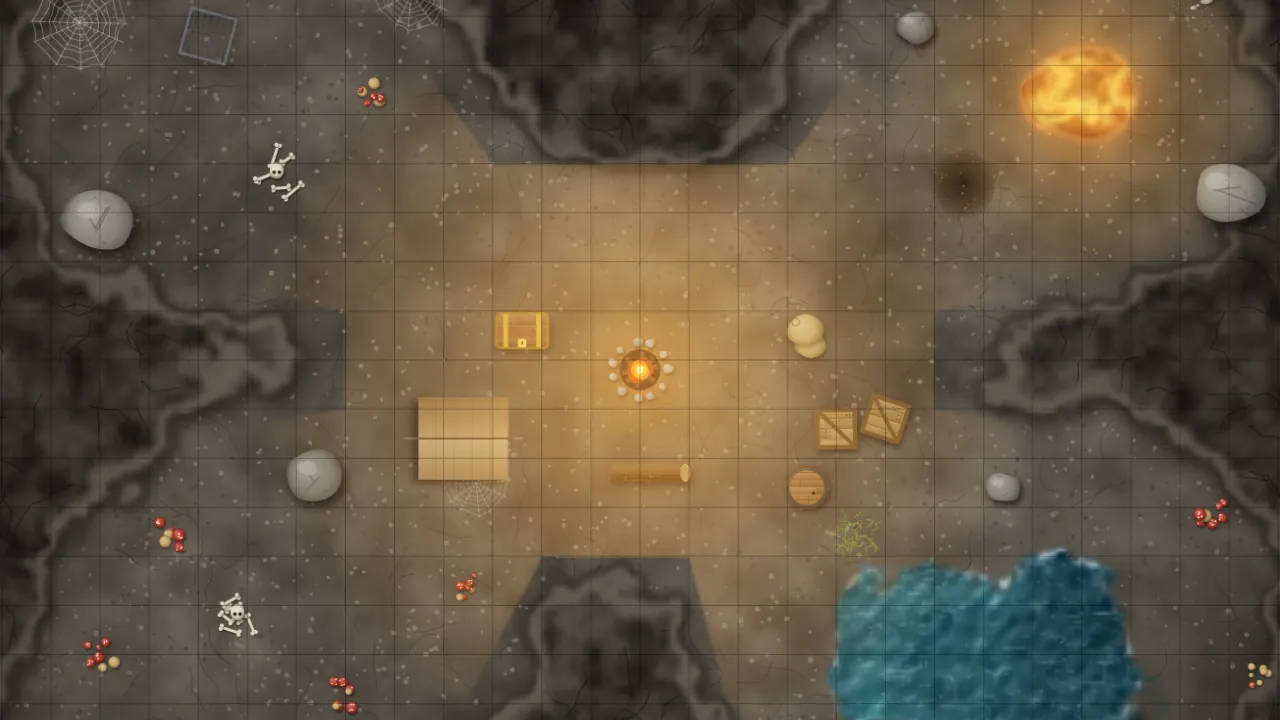
The TV is a browser window showing Fog Table's table display. It shows only what the players may see: the revealed map, visible tokens, shared rulers and drawings, the turn order, handouts and dice.
Connect a TV
Press Cast to table (top right), or choose Session → Connect a TV or projector…. With no TV connected, Fog Table asks where to show the map:
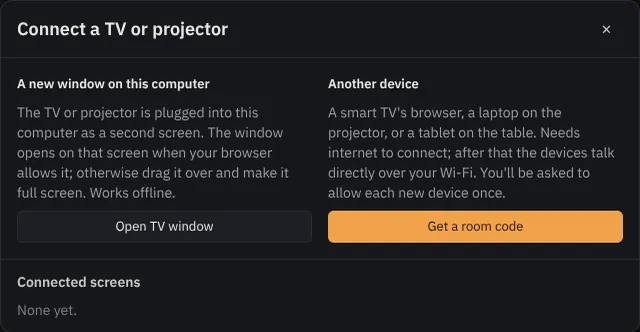
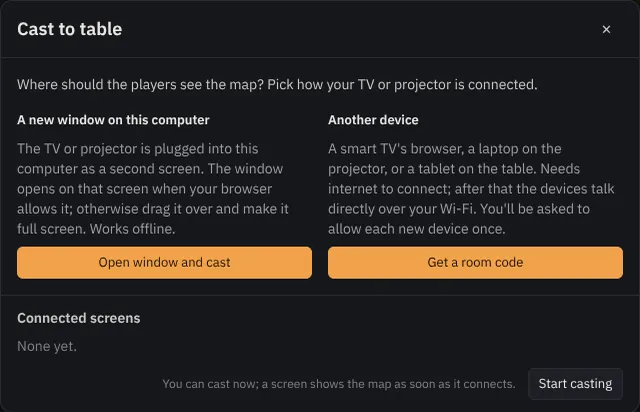
- On this computer: Open TV window opens the table display. Move it to the TV (your second screen) and double-click it for full screen. This works offline.
- On another device: Get a room code. On the TV's device, open the link or scan the QR code, or go to
/tableand type the code. You allow the TV once; it comes back by itself after that. Maps and fog go straight between your devices over your Wi-Fi; the server only introduces them.
Cast a map
Press Cast to table. The map fades in on the TV and its tab is marked LIVE. To show a different map, open its tab and cast again. Live · Stop takes the map off the TV.
The status bar shows how many TVs are connected, with Blackout next to it.

Choose what the TV shows
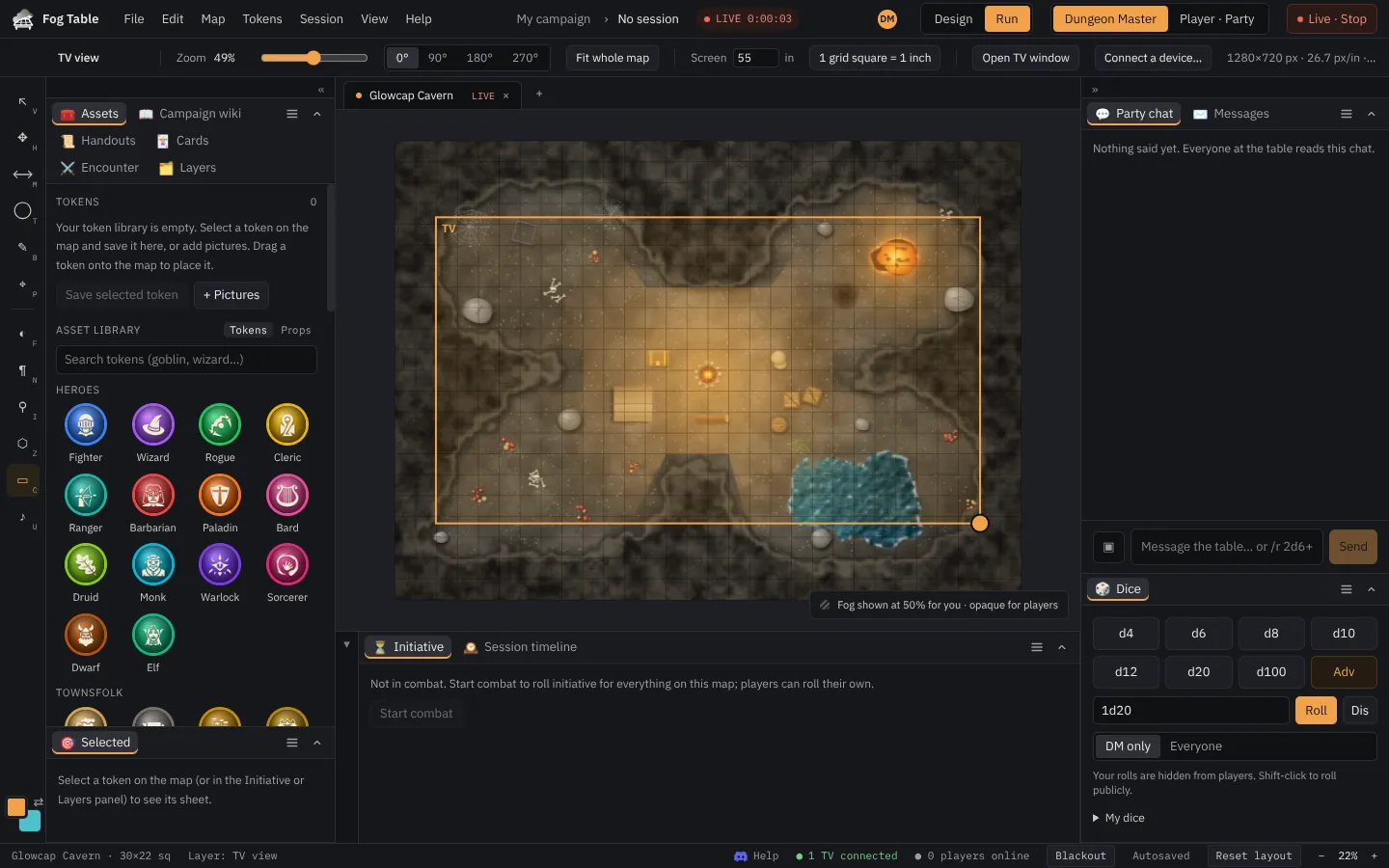
Choose Session → Adjust the TV view (or press C): the orange outline on your map is the TV's picture. Drag it to move it, drag its handle (or use the wheel) to zoom, and turn it 90° at a time so the map faces the right way on a flat TV. Fit whole map shows all of it.
The view buttons on the right of the map do the same job. Me moves only your view, TV makes the same buttons (zoom, fit) move the TV, and Both makes the TV follow whatever you look at.
Minis on the TV
Enter your TV's diagonal in the Adjust the TV view options and press 1 grid square = 1 inch: the grid then matches standard miniature bases. In Map settings, tokens on the TV can be shown in full, as coloured Rings under your minis, or Off.
Blackout
Blackout (in the status bar and the Session menu) blanks the TV and every phone at once, for a dramatic reveal or a break. Press it again to bring the map back.
Tip On a 3D map the TV stays top-down with a grid, so minis stand on it properly. See 3D maps.