More
Foundry VTT: live link, import and export
Keep Fog Table and Foundry VTT (v13 and v14) in step while you play, or move maps, walls, lights, tokens, journals and items between them as files.
Fog Table and Foundry VTT can stay linked while you play, and swap maps and campaigns both ways as files. Grid (square or hex), walls, doors, windows, lights, tokens with D&D 5e stat blocks, items, notes, pins, regions, effects, drawings and spell templates travel across.
From Fog Table to Foundry
- File → Export map for Foundry VTT writes one map as a
.fogtablefile. - File → Export campaign for Foundry VTT writes every map, the wiki, handouts, ambience sounds and your token library.
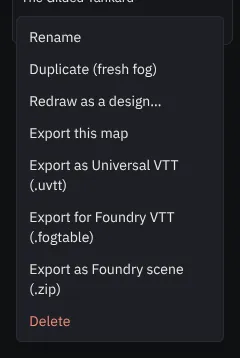
- Export as Foundry scene (.zip) (in a map's ⋯ menu in File → All maps) needs no module: it is a scene JSON plus its pictures, for Foundry's own import.
The Fog Table Bridge module
The module turns a .fogtable file into Foundry scenes, actors, journal entries, items and a playlist, and exports Foundry worlds back to Fog Table.
- In Foundry, open Add-on Modules → Install Module and paste this manifest URL:
https://fogtable.com/foundry/module.json(or download the module zip and unpack it into your Foundry user data asData/modules/fog-table/). - Enable Fog Table Bridge in your world (Game Settings → Manage Modules).
- A Fog Table button appears at the top of the Scenes and Journal sidebars (for Gamemasters). Use Import from Fog Table to pick a
.fogtablefile, or Export to Fog Table to tick scenes, journals, actors, items, roll tables, playlists and compendium packs and export them.
From Foundry to Fog Table
Drop the .fogtable file the module made on Fog Table's New tab. Fog Table also reads Foundry's own Export Data JSON (a scene, adventure, journal, actor, item, roll table or playlist): pick the JSON together with its pictures and sounds, and Fog Table matches them by file name. Foundry tiles are painted onto the map picture.
Live link
With the Fog Table Bridge module (version 1.2 or newer) the two apps can stay connected, so a game can run on both at once: Foundry for players online, Fog Table on the table TV.
- In Fog Table, open Session → Link Foundry VTT, tick Link this world with Foundry VTT and copy the link code.
- In Foundry, click the Fog Table button at the top of the Scenes sidebar, choose Live link, paste the code and click Connect. The Fog Table dialog turns green.
- In Fog Table, pick a Foundry scene and click Bring in and link, or click Send the open map to Foundry to make a Foundry scene from it.
On a linked map, these show up on the other side within a moment:
- tokens moving, being hidden or shown, added or removed;
- hit points (D&D 5e actors in Foundry);
- doors opening, closing or being locked.
Walls, lights, notes and the picture itself don't follow later edits: send the map again (it makes a new linked scene) when you change those. Unlink in the dialog stops keeping a map in step; both apps keep what they have. Both need to stay open, and Foundry reconnects by itself when you reload it.
Tip The link code works like a password for your linked maps. Make a new code in the dialog shuts the old one out.