Running a game
Tokens, sheets and initiative
Put heroes and monsters on the map, move them, keep their stats in the sheet, hide them, and run combat with initiative.
Add tokens
With the Select tool (V):
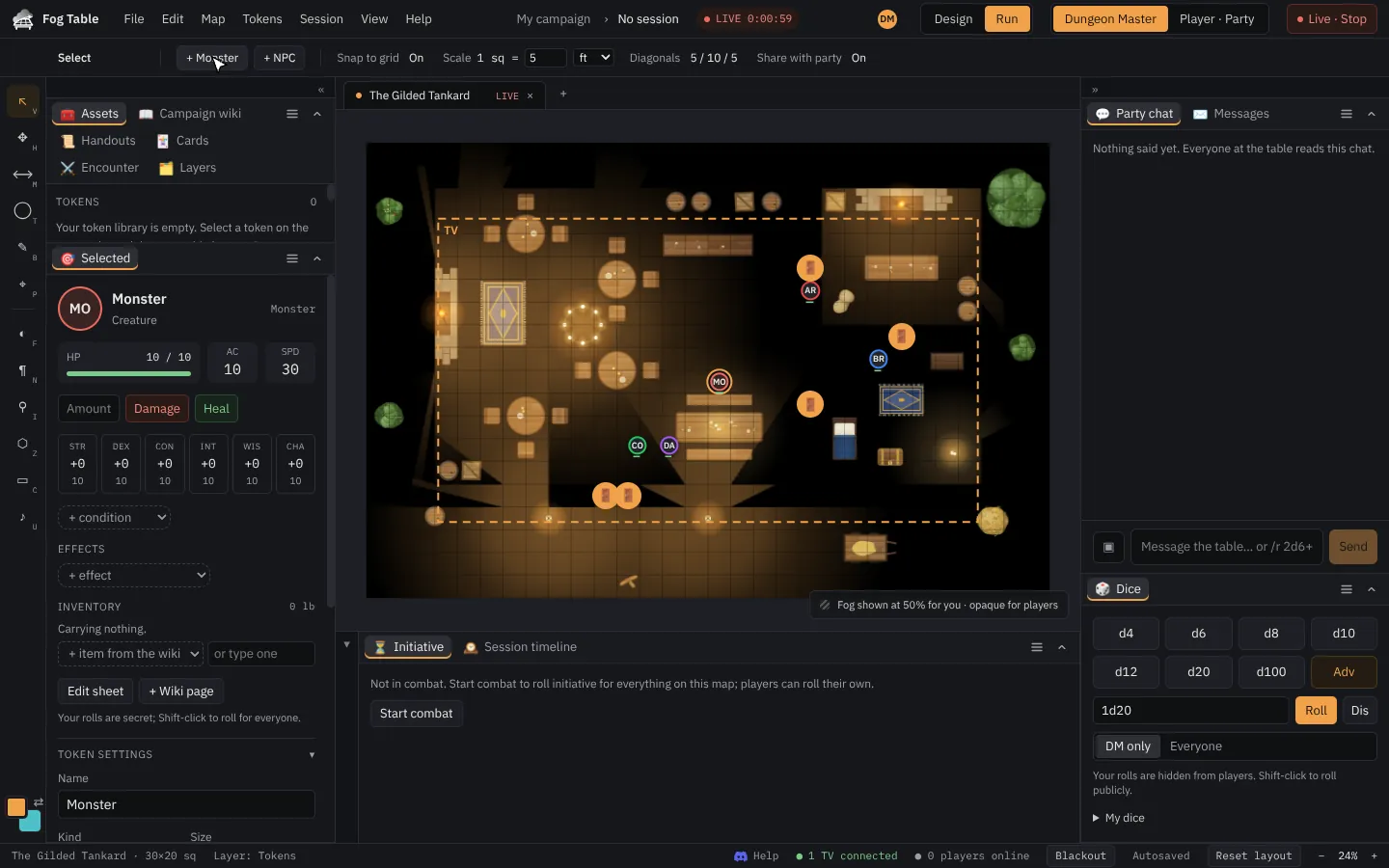
- + Monster and + NPC in the options bar drop a token on the map, and the Tokens menu adds a character. Double-clicking the map drops a monster.
- The Assets panel's asset library has ready-made heroes, townsfolk, animals and every monster in the bestiary: drag one onto the map.
- Encounter → + Add from bestiary adds SRD monsters with their stat blocks, hidden until you are ready.
- Your own token library (also in Assets) keeps tokens you saved, with their pictures.

Move them
Drag a token; it snaps to the grid (turn Snap to grid off to place it freely). The TV and phones follow.
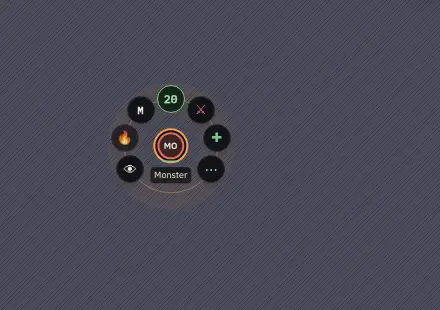
Quick buttons round a token
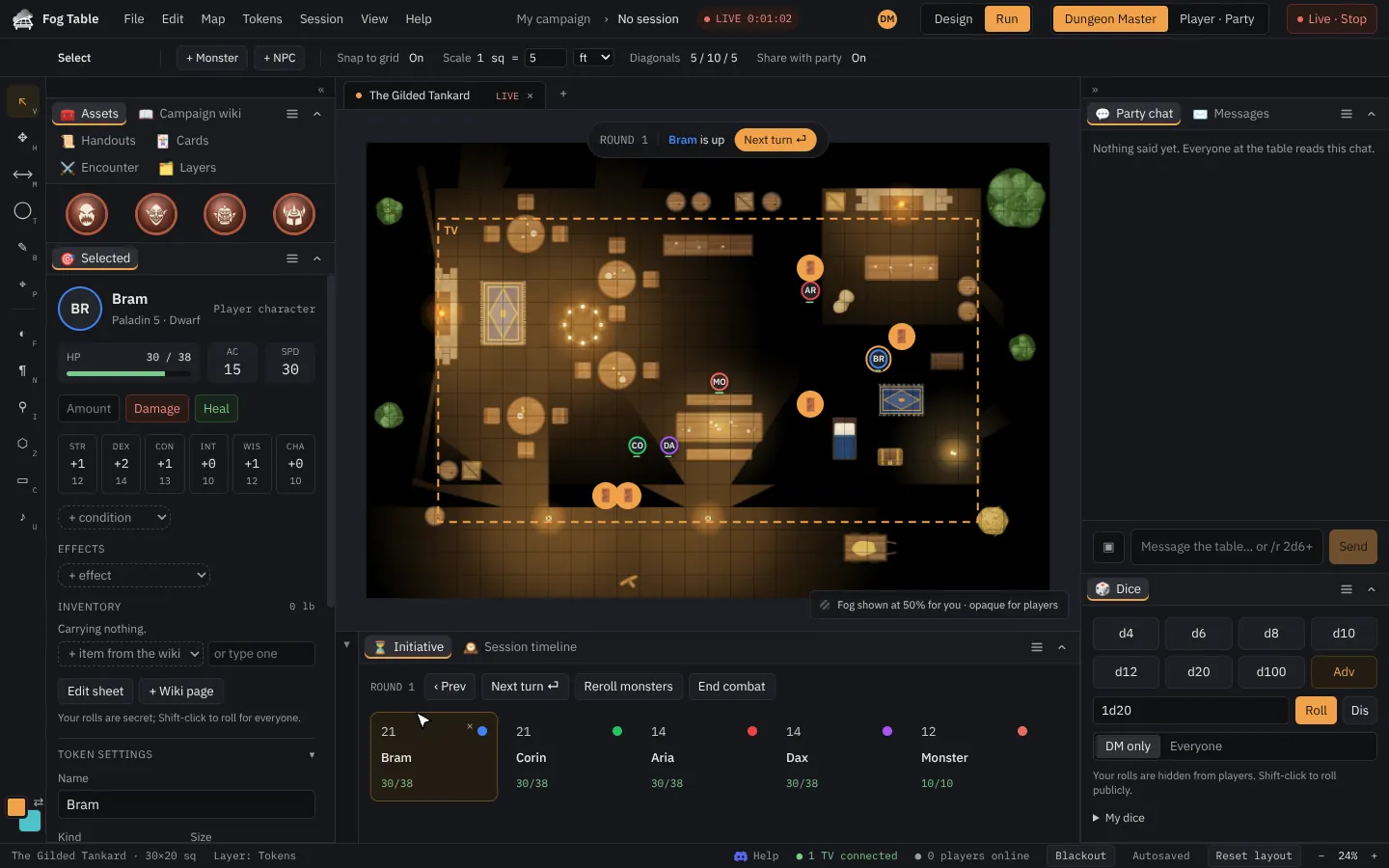
Pick a token and a ring of buttons appears round it, on 2D and 3D maps: Damage and Heal (or just type a number), Light a torch, Roll initiative and More (the same menu as right-clicking the token). Rolling initiative puts the token straight into the turn order, starting one if there isn't one yet; hold Shift to roll where everyone sees it. Once it is in, the button shows its number: click it to re-roll or take it out.
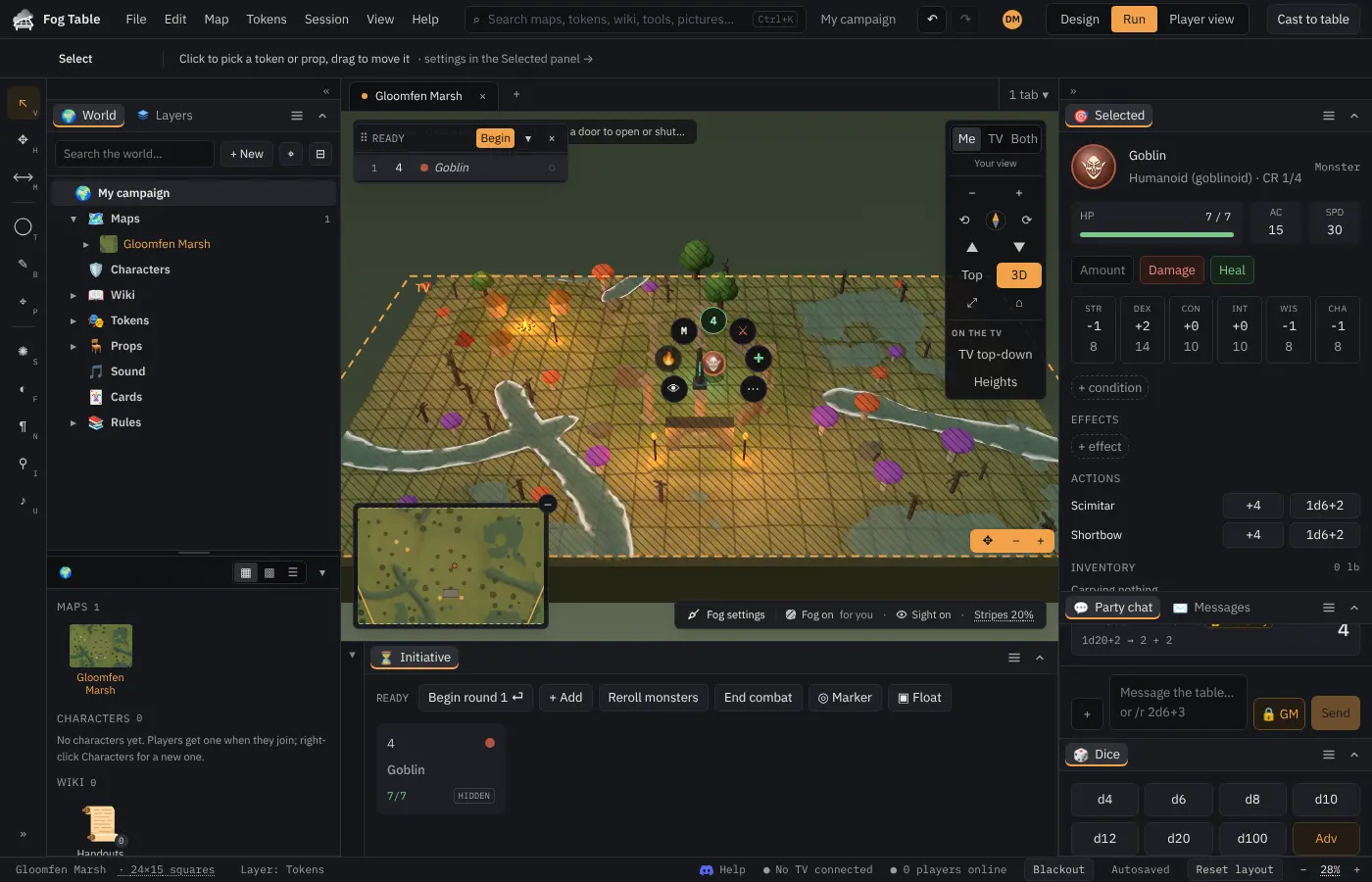
Every creature's stat sheet, the right-click menu and the Selected panel have Roll initiative too.
The sheet
Select a token and the Selected panel shows its sheet: HP (with damage and heal), AC, speed, abilities, conditions and effects, and actions whose to-hit and damage buttons roll into the chat. Spell slots and features with uses can be ticked off, and Short rest and Long rest give them back. Name, kind, size, colour, picture, sight and darkvision are edited here too.
Characters with a character file are built and levelled up step by step from the rules: see Characters, items and rules. Double-click an item on the map for a card with what it is and does.
Hidden tokens
A hidden token shows only on your screen. Hide a monster with the eye in the Layers panel's token list (or Tokens → Hide). Monsters standing in fog the players haven't revealed stay off the TV and phones too, even when not hidden.
Combat
Start combat in the Initiative panel (or the Session menu) rolls initiative for everything on the map; players can roll their own. Click a number to change it. Next turn (or Enter) moves on and selects whoever is up; the token whose turn it is glows. The turn order shows on the TV and on phones; hidden creatures never do.
How tokens show on the TV
Map → Map settings chooses whether the TV shows tokens in full, as coloured Rings for physical minis to stand on, or not at all.
Players' own tokens
Players set up their character (name, colour, photo) on their phone, place their token and drag it. You stay in charge: they can only move their own token, not while tokens are locked, not into unrevealed fog, and not through walls or closed doors. See Players join from their phones.