Running a game
Fog of war and vision
Paint the fog by hand, or let walls, doors, light and darkvision decide what the party sees.
Every map starts hidden. You decide how the fog lifts, per map, with the Sight setting in the Fog of war tool's options (or Map settings):
- Paint: you paint the fog away by hand. Simple and quick, and the default.
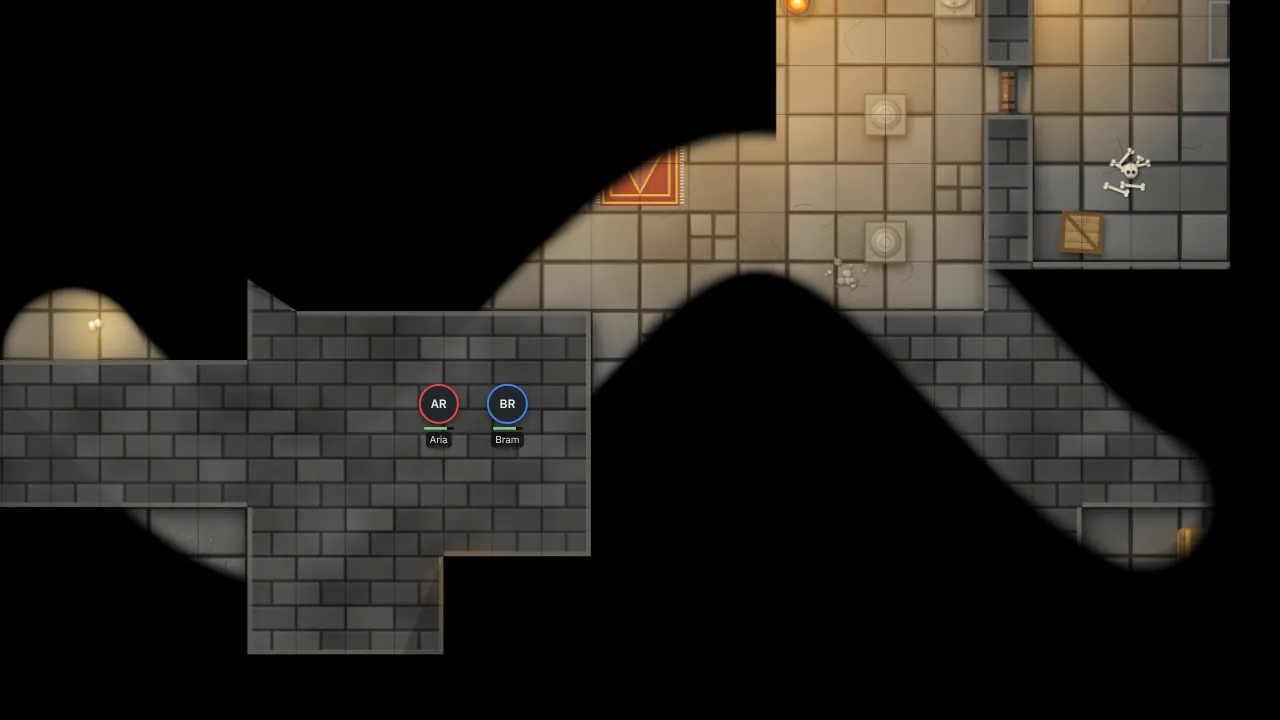
- Party: the players see what their tokens can see. Walls and closed doors block sight; in the dark they need light or darkvision.
- Each: every phone shows only what that player's own token sees; the TV shows the whole party's view.
Paint the fog
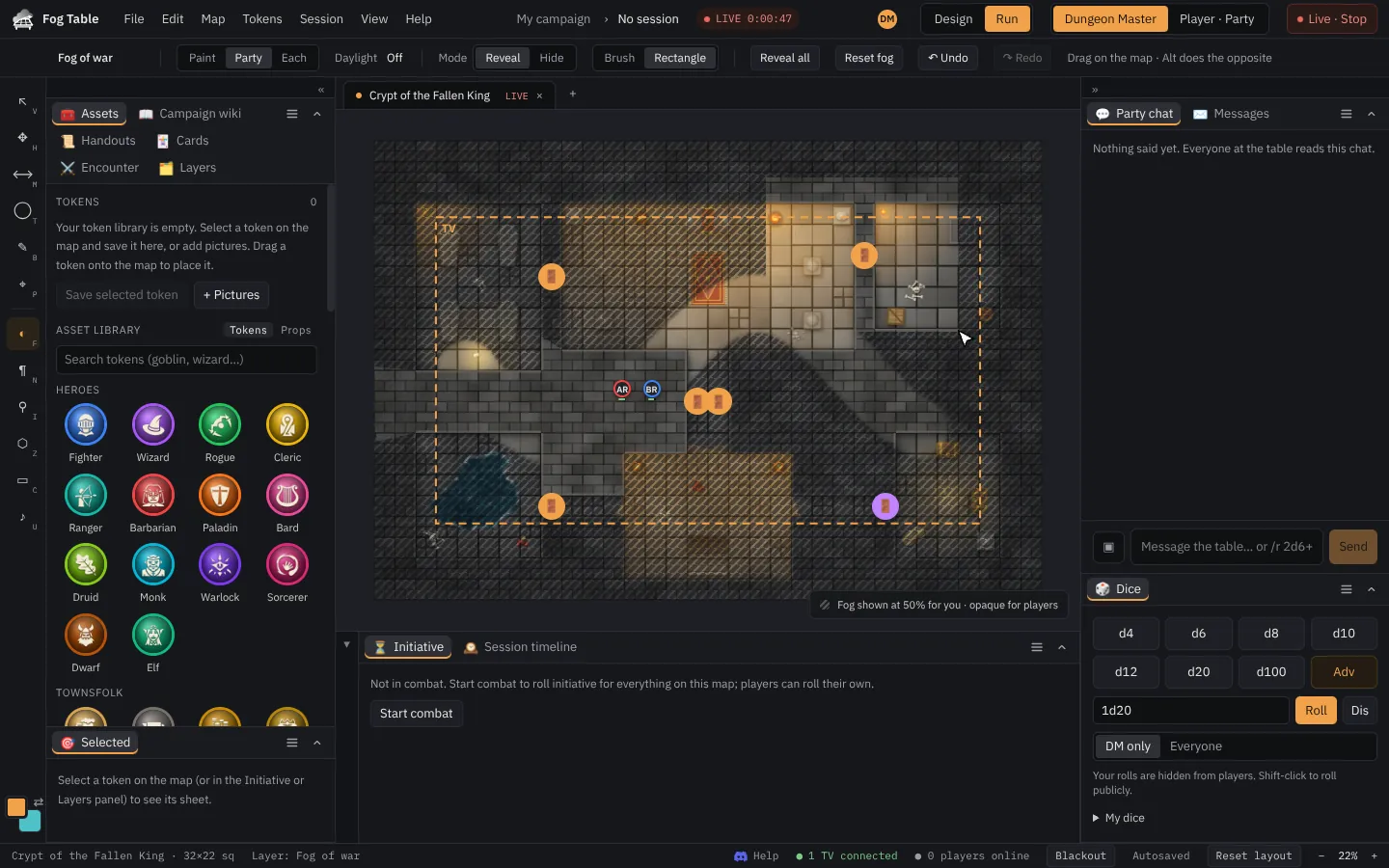
Pick Fog of war (F). Choose Brush or Rectangle, Reveal or Hide, the brush size ([ and ]) and a soft or hard edge. Paint, and the TV follows as you go.
- Hold Alt to do the opposite (hide while revealing), or press X to swap.
- Reveal all and Reset fog do the whole map.
- Ctrl+Z undoes a stroke, Ctrl+Shift+Z redoes it.
On your screen the fog is see-through so you can still see the map. On the TV it is solid. The chip at the bottom right of the map has Fog settings (it opens the Fog of war tool), Fog on / off for your own screen, and how the fog looks to you.
Let the party's eyes decide
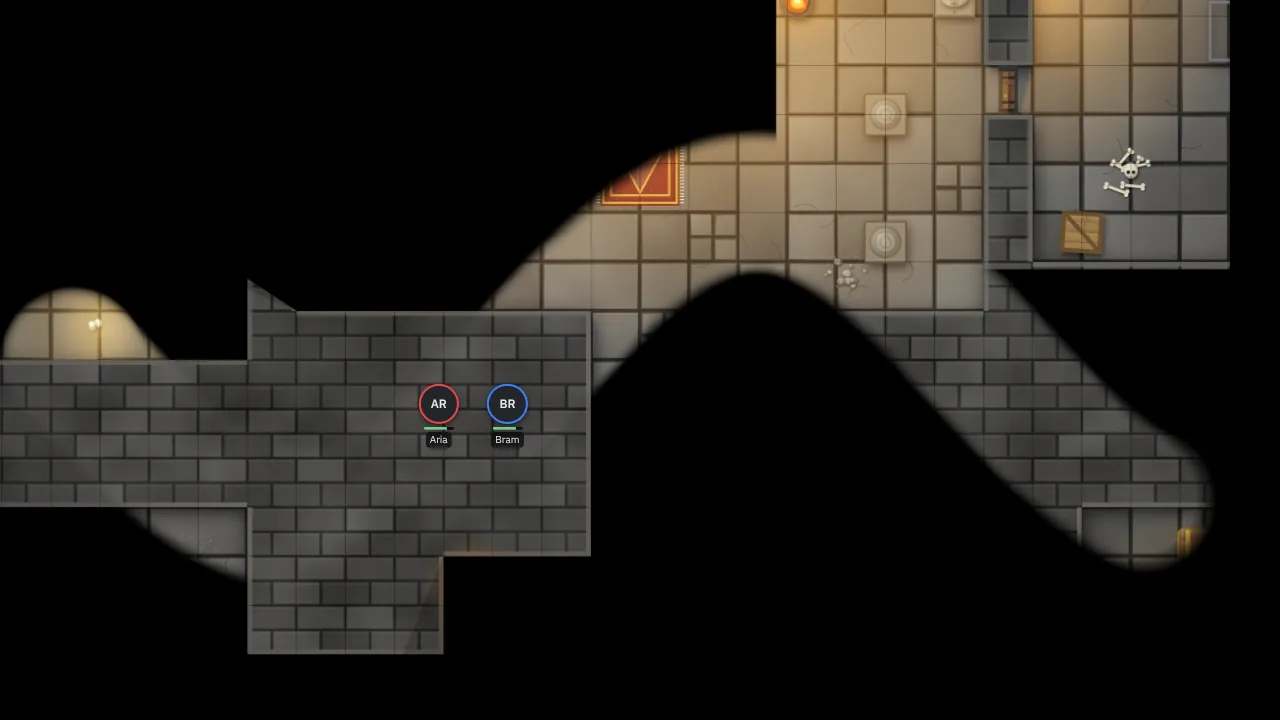
Switch Sight to Party. Now the map shows what the player characters can see from where they stand: walls and closed doors block their view, and in the dark they see only by light or darkvision. Turn Daylight on for an outdoor map in the day.
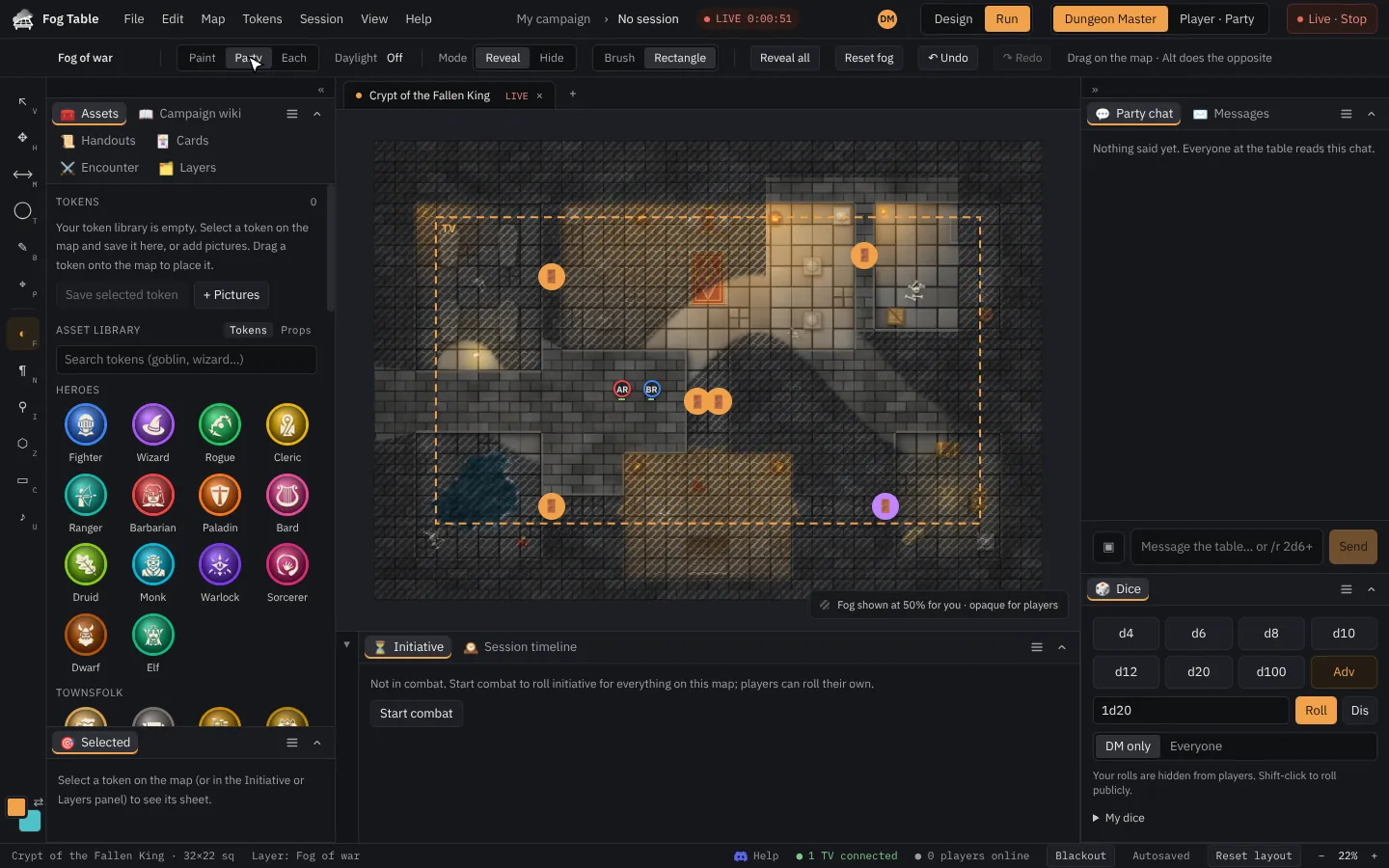
On a map that follows the campaign's world clock, day, dusk, night and dawn come from the clock as time passes: see The world clock.
Places the party has seen stay dimly visible (without the creatures in them). Forget explored areas resets that. Anything you painted away stays visible too.
Tip Give a token a torch so it lights the way as it moves: see Lights.
Walls and doors
Party and Each sight need walls. Ready-made maps and Universal VTT files have them already. For your own picture:
- Switch to Design mode and pick Walls and doors (W).
- Click corner to corner to draw a wall. Corners snap to wall ends and grid corners (hold Alt to place freely).
- Choose Door, Window (blocks movement, not sight) or Secret door in the options bar to draw those.
- Click a wall to change or delete it, or lock a door so players can't open it.
- Publish.
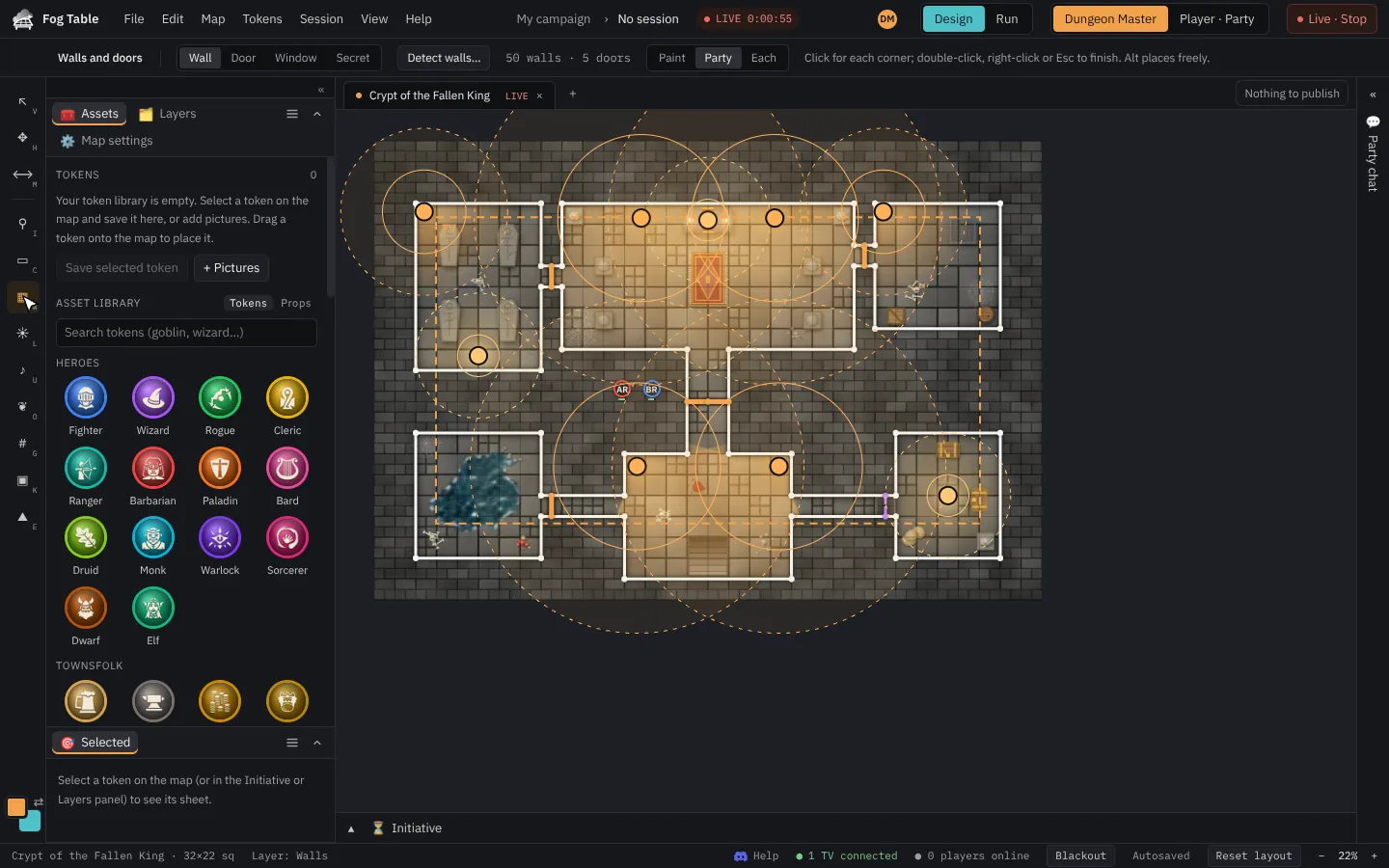
While running the map, click a door's round button to open or close it. Right-click it for its menu: open or close, lock it for players, make it a secret door or a plain wall, delete it, or Edit in the Selected panel. With the Walls tool, right-click any wall for the same.
Or let Fog Table find them: Map → Detect walls (set the grid first).
During play, click 🚪 on a door to open or close it. Players can open unlocked doors next to their own token.
Check what they see
Player view at the top of the console shows the map as the players see it: solid fog, no hidden tokens, no GM notes. Pick a character beside it to see what that one character sees.