Building maps
Map sounds
A crackling campfire, a waterfall or a tavern crowd placed on the map, heard on the TV louder as the party gets close, plus music for each map.
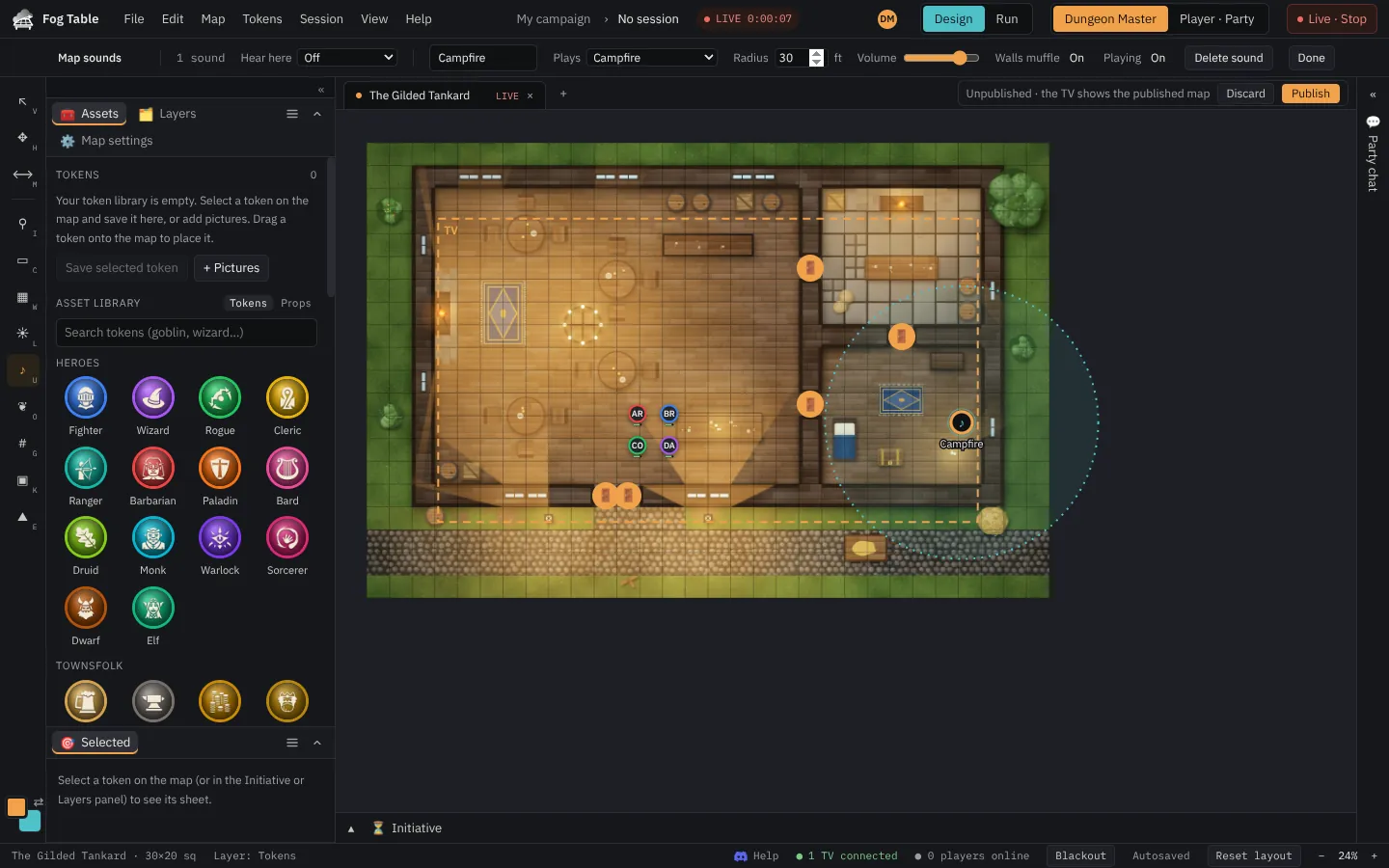
Map sounds play on the TV. Each has a place and a radius, and gets louder as the party's tokens get closer; walls muffle it.
Place a sound
- Switch to Design mode and pick Map sounds (U).
- Choose a sound in Sound to place (campfire, stream, waterfall, ocean waves, rain on a roof, howling wind, cave drips, crickets, a forge, a bubbling cauldron, magic hum, deep rumble), or use your own.
- Click the map where it should come from.
- Name it and set its radius in feet.
- Publish: the TV starts playing it.
During play
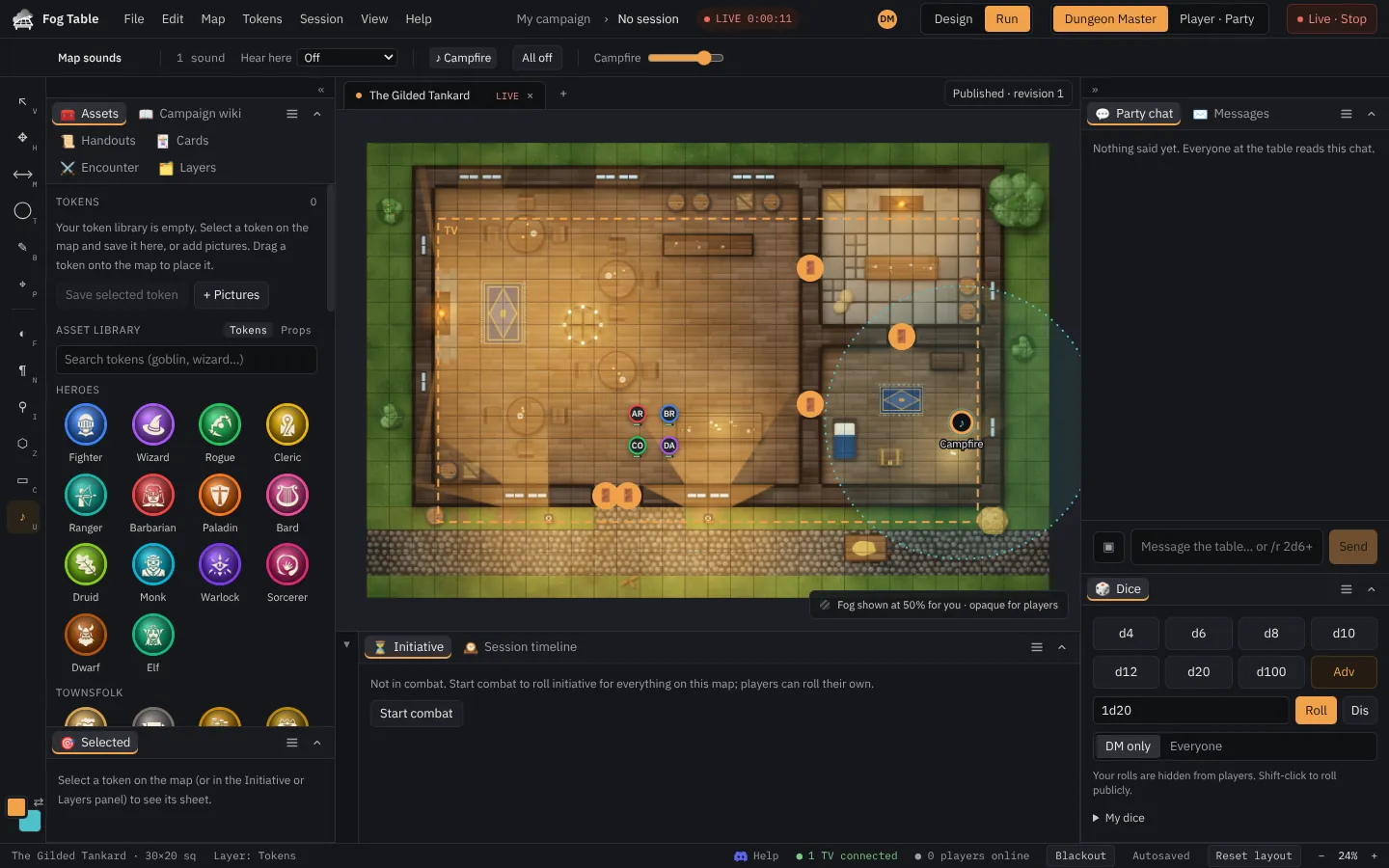
In Run mode the Map sounds tool lists the map's sounds: click one to start or stop it, All off silences them all, and a selected sound has a volume slider. None of this changes the map's design. Hear here plays the sounds on your own computer too.
Sounds that wait for the party
A sound can stay silent until the party gets to it. Select it with Map sounds (U) in Design mode and change Always plays to:
- When the party comes within a distance in feet, or
- When the party sees it within a distance (walls and closed doors hide it; windows and open doors don't).
Then pick keeps playing (it starts and plays from then on, like a waterfall heard once you reach the gorge) or plays once (a roar or a creak, each time the party comes back after everyone left). The Sound tab shows which sounds are waiting; Start or Play sets one off by hand and Re-arm makes it wait again.
Props that make a sound
Any prop can make a sound: pick the prop (Props tool O or Select V) and choose a sound in its Sound section. Campfires, fireplaces, braziers, wells, waterwheels, lava and glowing crystals offer Give it its usual sound. A prop's sound has the same radius, volume, walls and waiting options as a map sound, and it moves with the prop.
Music for a map
The Sound tab (🎵, beside Maps) holds the open map's music:
- Add a track from your ambience sounds, or Upload music….
- Press ▶ to play the playlist on the TV. ⏮ and ⏭ go back and on, ❚❚ pauses and ■ fades the music out.
- Volume and Crossfade (how many seconds one track fades into the next) apply at once. Shuffle and Repeat work as on any music player.
- Tick Start when this map goes on the TV and the music starts by itself when you show the map.
A map region can change the music too: give it the Sound or music behaviour to play a sound once, fade over to another track, or stop the music when a token walks in.
Note Browsers keep sound off until someone clicks the page. If the TV is silent, click the TV window once.
One track plays at a time: playing an ambience sound from the Assets panel takes over from the map's playlist.