Maps
Your own maps, backups and accounts
Upload pictures, videos, YouTube links and Universal VTT files, find the grid and walls for you, and keep everything backed up.
Upload a map
On the New tab, press Upload a map or image, or just drop a file anywhere on the tab. Fog Table takes:
- Pictures: PNG, JPEG, WebP.
- Videos: MP4 and WebM. Your copy is the clock: play, pause and seek happen on the TV too. Turn on TV sound to hear it on the TV.
- YouTube links: + Map from a YouTube video (needs internet).
- Universal VTT files (
.dd2vttfrom Dungeondraft,.uvtt,.df2vtt): you get the map with its grid, walls, doors and lights. - Foundry VTT and Fog Table exports: see Foundry VTT.
- Asset packs: a
.zipof maps, tokens, props and sounds, as map and token makers sell them. See below.
Big PNG maps are saved as WebP at the same size, which looks the same and is usually a fraction of the file size, so maps reach the TV and phones faster. Names drop the notes creators add, so fortress_of_doom(30x25-gridless).png becomes Fortress of doom. A video map over 50 MB or larger than 4K gets a tip: a 1080p MP4 (H.264) or WebM at 30 frames a second or less plays smoothest.
Asset packs
Drop a pack's .zip on the New tab (or pick it with Upload a map or image). Fog Table sorts its files by the folders they sit in, the layout Foundry VTT uses too:
| Folder | Becomes |
|---|---|
maps/, scenes/, battlemaps/ |
Maps (pictures and videos) |
tokens/, creatures/, monsters/ |
Saved tokens (a folder inside, like tokens/undead/, becomes their group) |
tiles/, props/, objects/ |
My props |
audio/, sounds/, music/ |
Sounds |
artwork/, handouts/ |
Handouts |
Pictures outside those folders are sorted by size: big ones become maps, small square ones tokens, the rest props. You see the list first and tick what to bring in.
⤓ Export asset pack on the New tab does the opposite: your map pictures, saved tokens, props, sounds and handout pictures in one zip with the same folders and web-safe file names, ready to copy into Foundry's Data folder or to bring into another Fog Table.
Set the grid
The grid is part of the map's design: switch to Design mode and pick the Grid tool (G). Press Detect grid automatically, or click two corners of a square a few squares apart. You can fine-tune the size, offset, colour and line width. See Square and hex grids.
Find the walls
Map → Detect walls finds walls, doors, windows and lights in the picture (set the grid first). A review screen shows what it found; adjust it, then fix anything else by hand with the Walls and doors tool.
All maps
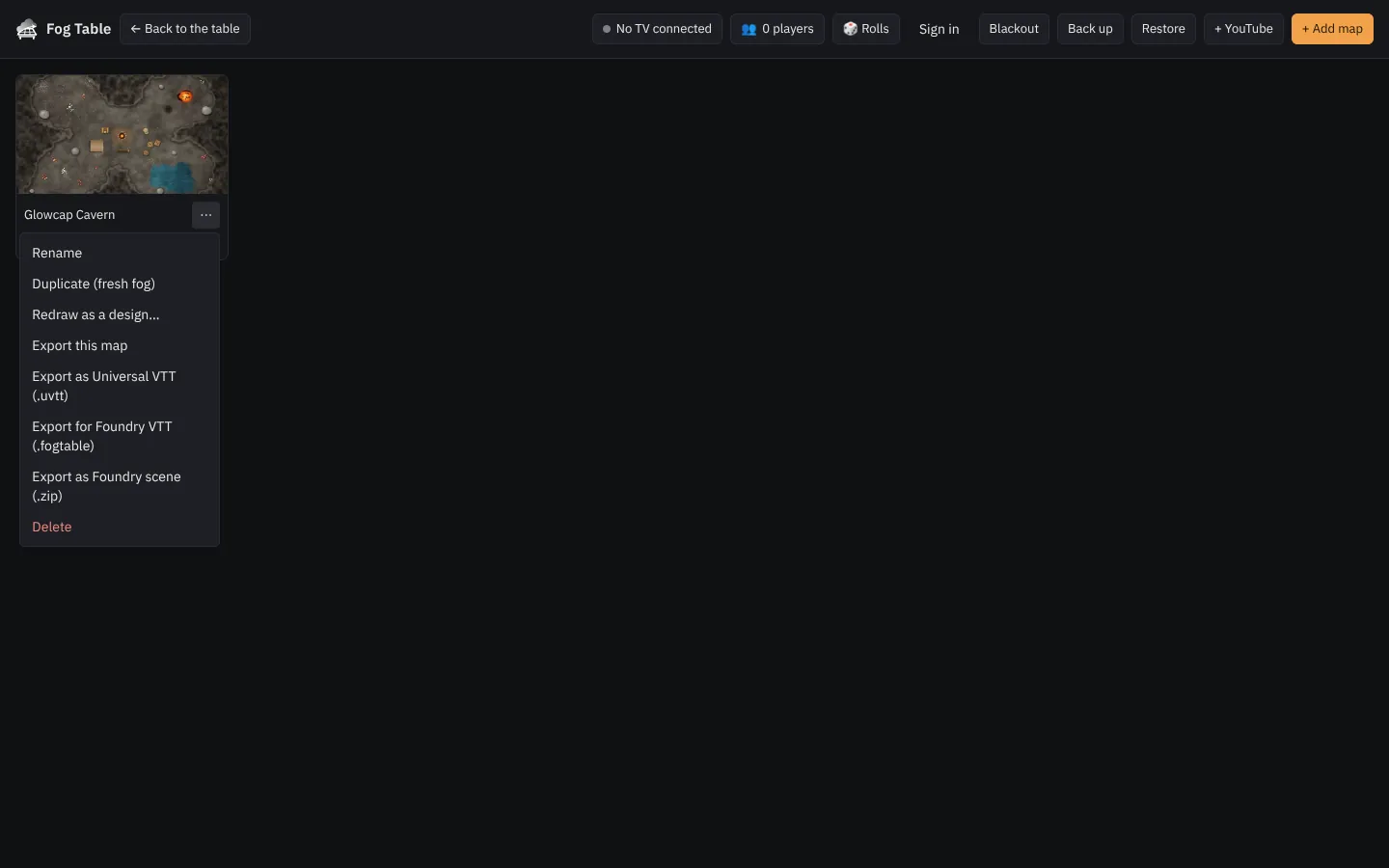
File → All maps lists every map you have. Each map's ⋯ menu can rename it, duplicate it with fresh fog, redraw it as a design, export it, or delete it.
Backups
Everything is kept in your browser and saved as you go. Back up in the map list downloads every map, the campaign wiki, session plans, your token library and ambience sounds as one .dndvis file. Restore (or dropping that file on the New tab) brings them back, on any device.
Accounts (optional)
You never need an account. With one (Sign in at the top of the map list) you can save maps to the cloud and open them on any device, keep your settings everywhere, and invite players by email.