Start here
A tour of the console
The menu bar, the tool rail, the tool options, the dockable panels and the status bar, and what each one is for.
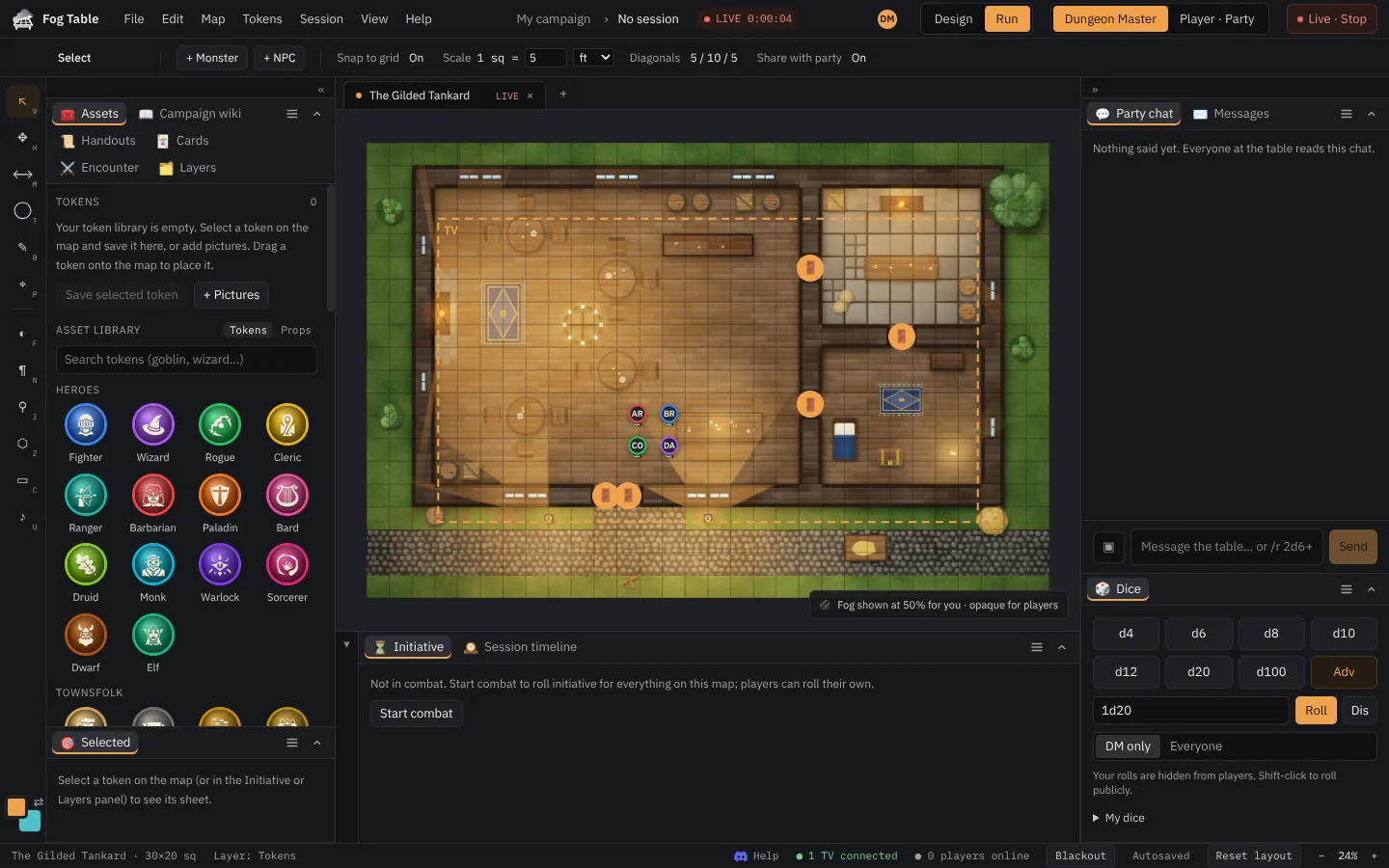
The DM console is laid out like an image editor: menus along the top, tools down the left, the map in the middle and panels around it.
The menu bar

- File: new tab, all maps, back up and restore, exports (Universal VTT, Foundry VTT) and your account.
- Edit: undo and redo, and Duplicate, Delete and Deselect for whatever is picked on the map (a token, a prop, a light, a note…).
- Map: rename, resize, grid, walls, fog settings, reveal or reset the fog, and Map settings (fog mode, lighting, weather, how tokens show on the TV).
- Tokens: add a monster, NPC or character, open the bestiary, hide tokens.
- Session: everything about the table: cast to table, adjust the TV view (move, zoom and turn what the TV shows, C), blackout, connect a TV, open a TV window, players and invites, combat, and the table camera (beta).
- View: zoom, the minimap, the 3D view, hover tips, the panels, the Layout (Classic, or all panels on the right) and Reset layout.
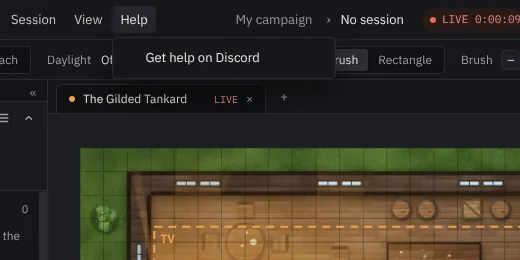
- Help: this guide, a page about the tool you are using, and our Discord.
In the middle is the campaign name and a LIVE timer while a map is on the TV. On the right are undo and redo, the people connected, the mode switch and Cast to table.
The mode switch has the three things you do with a map, in order:
- Design: build the map. Nothing reaches the TV until it is published.
- Run: play on it.
- Player view: see the map as the players do: solid fog, no hidden tokens, no GM notes. Pick Party or one character beside it to look through their eyes.
The tool rail

Each tool is listed with its name and its one-letter shortcut, in groups: moving about first, then Mark (things everyone can draw), DM only, and in Design mode Draw, Place and Set up. The rail starts as icons, each naming its tool on hover; » at the bottom shows the names beside them, and Hide names shrinks it back.
Which tools you see depends on the mode: Run mode has the tools for playing, Design mode the ones for building (see Design mode and Run mode).
| Tool | Key | What it does |
|---|---|---|
| Select | V | Pick and drag tokens; add monsters and NPCs from the options bar. |
| Pan | H | Move around the map (right-drag or Space-drag works with any tool). |
| Measure | M | Rulers in feet, with 5/10/5 diagonals. |
| Area template | T | Cones, circles, lines and squares for spells. |
| Draw | B | Draw on the map; share it with the party or keep it to yourself. |
| Ping | P | Point at a spot on every screen. |
| Fog of war | F | Paint the fog away or back. |
| GM note | N | Pin a note only you can see. |
| Pins | I | Pins and regions that open other maps. |
| Regions and triggers | Z | Areas that do something when a token walks in. |
| Map sounds | U | Sounds that get louder as the party gets close. |
The tool bar and the Selected panel
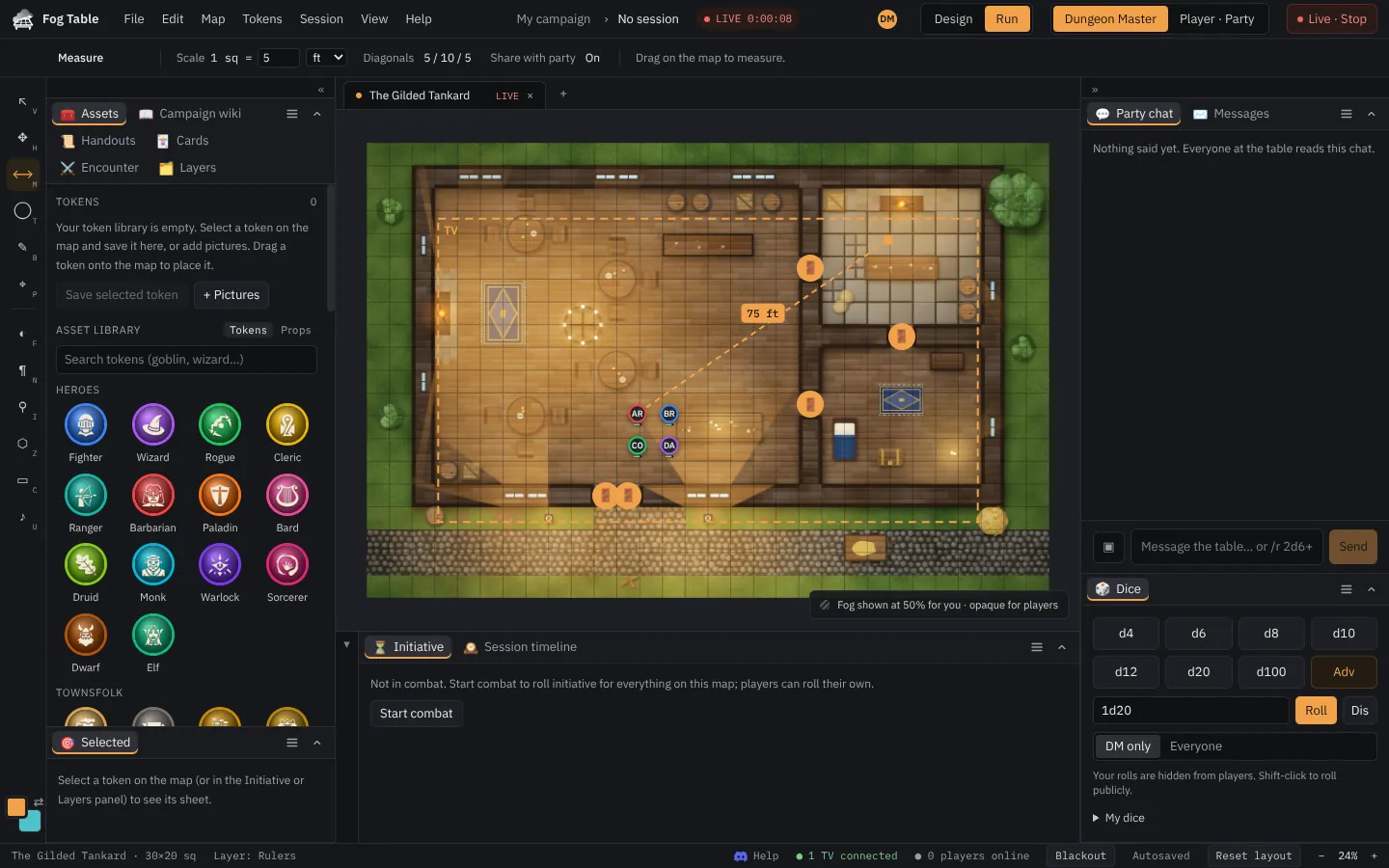
The bar under the menus names the tool you are using and what a click does. The tool's settings (the fog brush size, the kind of wall or light the next click places, ruler sharing and so on) are in the Selected panel on the right, together with whatever you picked. With nothing picked, the tool comes first; when you pick something, its properties come first and the tool's settings follow.
If you fold the right side away, the settings move back into the bar.
Tabs and search
Every map and wiki page you open gets a tab above the map. Right-click a tab for Close, Close others, Close tabs to the right, Close all tabs, Reopen closed tab, Pin (pinned tabs stay at the front and survive closing the rest), Rename, Duplicate and Show in World panel.
The search box at the top (Ctrl+K) finds everything: your maps, tokens, wiki pages, handouts, rules and monsters, and every ready-made map, one-shot and pack. It can also find openly licensed pictures to drop on the map as a token or a prop.
Panels
Panels sit in docks left, right and below the map: World (everything in your campaign as a tree: maps, characters, wiki, tokens, props, sounds, cards and rules), Assets (your token library and the asset library), Campaign wiki, Handouts, Cards, Encounter, Layers, Selected (whatever you picked on the map), Party chat, Messages, Dice and Initiative.
Drag a tab onto another group to join it, or into a gap to start a new group. Collapse a group with its arrow, and drag a dock's edge to resize it. View lists every panel. Under View → Layout, Classic keeps the library on the left, the Selected panel and chat on the right and initiative below; All panels on the right docks every panel in one column on the right. Reset layout puts them back the way the picked layout has them.
The boxes that float over the map (the view buttons, the storey stack and storey sign, the 3D hint, the minimap, the fog chip, the turn order and round pill, trap alerts, join requests and the rest) can be moved out of the way: drag one by its ⠿ grip, or by any empty part of it. Each stays inside the map, and the console remembers where you left it on this device. Double-click a grip to put that box back; Reset layout puts them all back.
The Selected panel
Whatever you pick on the map shows in Selected, top right, the same way for everything, above the tool's settings. Picking something brings the panel forward, opening it if its group or side was folded: its name and kind, what you can do with it (Delete, Duplicate), then its properties.
| You pick | The panel shows |
|---|---|
| A token | Its sheet, and its token settings. |
| A prop | Label, what players are told, size and turn, stacking, sound. |
| A light (Lighting tool) | On or off, preset, animation, colour and reach. |
| A wall or door (Walls tool) | Its kind, and open or locked for doors. |
| A sound (Map sounds tool) | Name, what it plays, volume, reach and when it plays. |
| A GM note, a pin, a region | Its text, what it opens, what it does. |
| An area template or a drawing | Label, size, colour, and whether players see it. |
| A room, wall or label you designed | Floor and wall styles, text, hidden from players. |
| A 3D piece (3D terrain tool) | Turn, size, level, and the next section. |
If you folded the right side away, the bar offers a Properties button instead.
The status bar
Along the bottom: the map's size, the active layer, how many TVs and players are connected, Blackout (blanks every screen at once), autosave, Reset layout and zoom.
Help while you play
Help in the menu bar opens this guide, and How to use opens the page about the tool you have selected.
Handy shortcuts
V select · H pan · M measure · F fog · X swap reveal and hide · [ ] brush size · Enter next turn · + − zoom · Esc deselect · Del delete · Ctrl+Z undo.